 Excelrs
From Prompt to Live Link: Build and Publish Your First Real App
Build an attendance tracker with AI, make it remember your data, and put it online for free.
Sandeep Jaiswal·22 October 2026 · 11 min read
Part 2 of the Excelrs vibe coding series. Build an attendance tracker that remembers your data, then put it on the internet for free.
What you will learn
- How to plan an app before you write a single prompt
- How to build in small slices instead of one giant prompt
- How to test like a real user, including the cases that break apps
- How to make your app remember data after you close it
- Two free ways to put your app online and share the link
- How to turn feedback from friends into your next prompts
1. Where we left off
In Vibe Coding: A Beginner's Guide, you built a to-do list as a single HTML file and opened it by double-clicking. That is a great first step, but it has two limits. The app lives only on your laptop, and nobody else can use it.
A real app is different in four ways:
| A practice app | A real app |
|---|---|
| Solves a made-up problem | Solves a problem someone actually has |
| Forgets everything when closed | Remembers your data |
| Works on your laptop | Works on any phone |
| Lives in a file | Has a link you can send on WhatsApp |
In this guide we will build one real app from start to finish: an attendance tracker that tells you whether you are safe under your college's 75% attendance rule.
2. Plan before you prompt
Most beginners open the AI tool and type "make me an app". The AI then guesses, and you spend an hour undoing its guesses. Five minutes of planning saves that hour.
Answer these five questions on paper or in a notes app:
| Question | Our answer |
|---|---|
| What problem does it solve? | Students lose track of attendance and get a shortage notice at the end of the semester. |
| Who is it for? | A college student checking on their phone between classes. |
| What are the three must-have features? | Add subjects, record classes attended and total classes, show the attendance percentage. |
| What would be nice later? | "How many classes can I miss?" and "How many must I attend?" for each subject. |
| What does "done" look like? | I can open a link on my phone, see all my subjects, and the numbers are still there tomorrow. |
That last answer is the most important one. It tells you when to stop adding features and publish.
The maths, in plain words
You do not need to write the formulas yourself, but you should understand them so you can check the AI's work:
- Percentage = classes attended ÷ total classes × 100.
- Classes you can still miss while staying at 75%: the largest number of future classes you could skip and still be at 75% or above. If you attended 36 of 40, you can miss 8 more (36 ÷ 48 = 75%).
- Classes you must attend to get back to 75%: if you attended 25 of 40, you need 20 classes in a row (45 ÷ 60 = 75%).
Keep these two examples. You will use them to test the app later.
3. Build in slices, not in one prompt
A single huge prompt often produces a big app where three things are broken and you cannot tell which part caused it. Build it in slices instead. After each slice, run the app and check that it works before moving on.
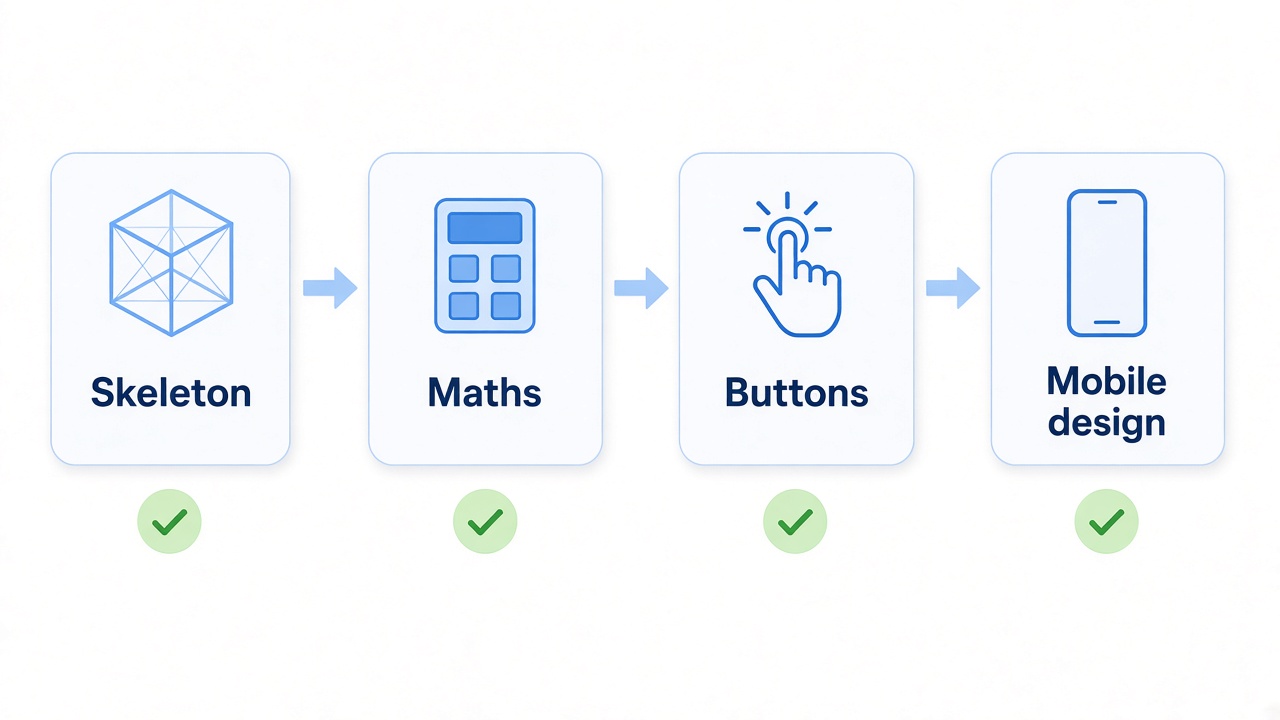
Slice 1: The skeleton
Build an attendance tracker as a single HTML file called index.html. I can add a subject by typing its name. Each subject shows two numbers I can edit: classes attended and total classes. Below them, show the attendance percentage. Keep the design simple for now.
Run it. Add two subjects. Change the numbers. Does the percentage update? If yes, move on.
Slice 2: The useful part
For each subject, if attendance is 75% or above, show in green: "You can miss X more classes." If it is below 75%, show in red: "Attend the next Y classes to reach 75%." Use the standard formulas and round so the advice is always safe.
Now test with the two examples from the planning step. With 36 of 40, it should say you can miss 8. With 25 of 40, it should say attend 20. If the numbers are wrong, tell the AI exactly that:
With 25 attended out of 40, the app says attend 19, but 44 out of 59 is only 74.6%. The correct answer is 20. Please fix the formula.
This is the "describe problems precisely" habit from the first guide. A specific bug report gets a specific fix.
Slice 3: Quick buttons
Typing numbers between classes is slow. Ask for one-tap buttons:
Add two buttons to each subject: "Present" adds 1 to both attended and total. "Absent" adds 1 to total only. Also add a small "Delete subject" option that asks for confirmation first.
Slice 4: Make it look good on a phone
Make the design mobile-first. Each subject is a card with rounded corners. Buttons should be large enough to tap with a thumb. Use a clean white background with one accent colour. Show the overall attendance across all subjects at the top.
Four short prompts give you a working, good-looking app, and you understood every step.
4. Test like a real user
Your app works when you use it the way you planned. Real users will not. Spend ten minutes trying to break it on purpose:
| Test | What should happen |
|---|---|
| Add a subject with 0 total classes | No "NaN" or error. Show "No classes yet". |
| Enter attended greater than total (12 of 10) | Show a warning or block it. |
| Type a negative number | Reject it. |
| Leave the subject name empty | Do not add a blank card. |
| Add 10 subjects | The page still scrolls and looks fine. |
| Refresh the page | Everything is still there (we fix this next). |
For each failure, send one clear message to the AI. For example:
When total classes is 0, the percentage shows NaN%. Show "No classes yet" instead.
Fix one problem at a time and re-test.
5. Make it remember
Right now, if you refresh the page, all your subjects disappear. That is because the app keeps the data only in memory while the page is open.
The simplest fix is something browsers already have, called local storage. It is a small, private notebook that the browser keeps for each website. Your app writes the subjects into it and reads them back when the page opens.
Save all subjects and their numbers in the browser's localStorage every time something changes, and load them when the page opens. Do not use any server or database.
Refresh the page. Your subjects should still be there.
Know the limits of local storage so it does not surprise you:
- The data stays on that phone, in that browser. Open the link on a laptop and you will see an empty app.
- Incognito or private mode usually forgets everything when closed.
- Clearing browser data will erase it.
For a personal attendance tracker, this is perfect: no login, no server, no cost. When you later build apps where many people share data, you will need a real database, and that is a good topic for a future guide.
6. Put it online
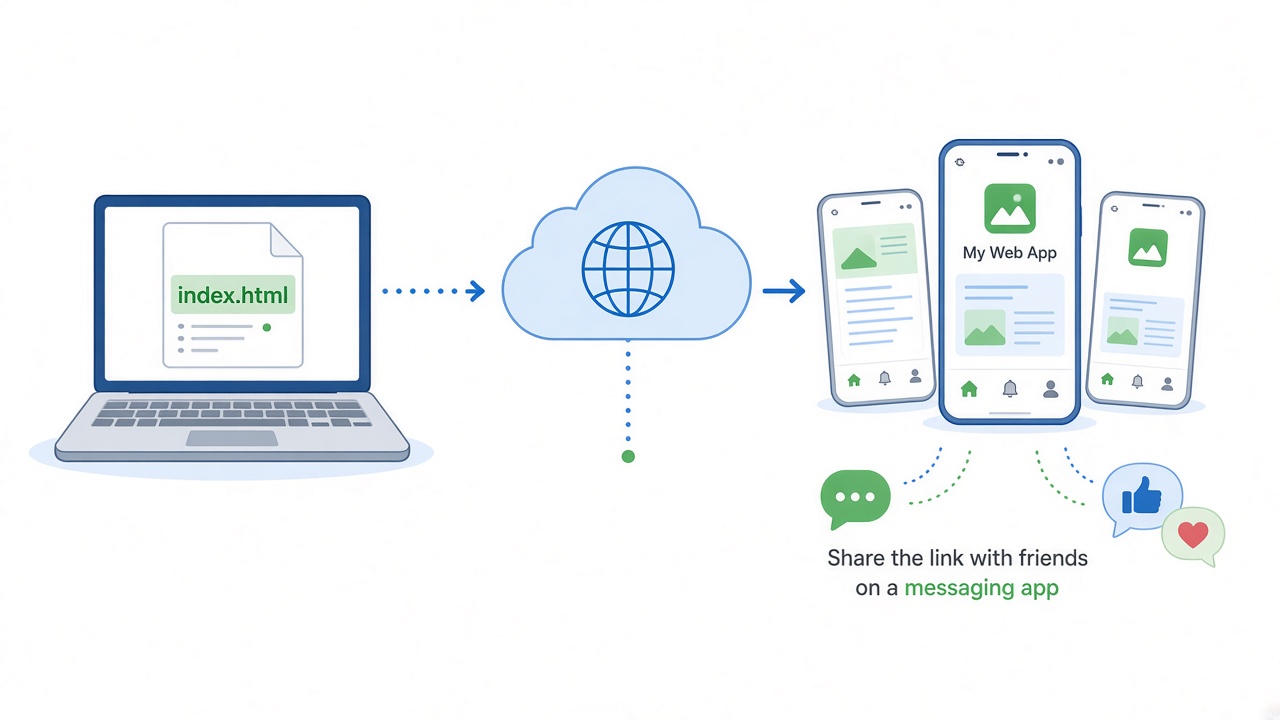
Your app is one file called index.html. The name matters, because websites look for index.html as the front page. Here are two free ways to publish it.
Option A: Netlify Drop (fastest)
- Create a folder on your computer, for example
attendance-tracker, and putindex.htmlinside it. - Open app.netlify.com/drop in your browser.
- Drag the folder onto the page.
- Within seconds you get a link that looks like
random-name-123.netlify.app. - Netlify may ask you to sign up for a free account so the site stays live. Do it, and you can also change the name to something like
my-attendance.netlify.app.
To update the app later, open your site in Netlify and drag the new folder in again.
Option B: GitHub Pages (best habit)
This takes ten minutes longer, but it teaches you GitHub, which every developer uses and which recruiters look at.
- Create a free account at github.com.
- Click New repository, name it
attendance-tracker, make it Public, and create it. - Click Add file → Upload files and upload
index.html. Click Commit changes. - Go to Settings → Pages. Under "Build and deployment", choose Deploy from a branch, select
mainand/ (root), and click Save. - Wait a minute or two. Your app will be live at
https://your-username.github.io/attendance-tracker/.
| Netlify Drop | GitHub Pages | |
|---|---|---|
| Time to first link | Under a minute | About 10 minutes |
| Updating | Drag the folder again | Upload the new file |
| Version history | Basic | Every change is saved |
| Shows on your profile | No | Yes, a public portfolio |
A word of caution: both options make your code public. That is fine for this app, but never put passwords, API keys or anyone's personal data inside a file you publish.
7. Share it and listen
An app nobody uses is still a practice app. Send your link to five classmates on WhatsApp with a short message:
I built a small app that tells you how many classes you can miss and still stay above 75%. Can you try it for a day and tell me one thing you liked and one thing that annoyed you?
Feedback becomes your next prompts. If a friend says "I want to see my attendance for this week only", that becomes:
Add a small history under each subject showing the date of each Present or Absent tap, and a "This week" summary.
This is the real loop of building software. The AI writes the code, but people tell you what to build next.
8. Common problems after publishing
| Problem | Likely cause and fix |
|---|---|
| Blank page or "Page not found" | The file is not named exactly index.html, or it is inside an extra folder. Fix the name and re-upload. |
| Looks fine on laptop, tiny on phone | Ask the AI: "Add the mobile viewport meta tag and make the layout responsive." |
| My data is gone | You opened it in a different browser, a different device, or incognito. This is how local storage works. |
| My changes are not showing | Make sure you uploaded the new file, then refresh with Ctrl+F5 or wait a minute. |
| A friend says it is broken | Ask for a screenshot and the phone model, then describe it exactly to the AI. |
9. What to build next
Once you have published one app, the second one takes half the time. Here are ideas that solve real problems around you:
- Hostel expense splitter: who paid for what, and who owes whom.
- Exam countdown: days left to each exam, with a daily revision target.
- Shop price list: a simple page a local shop can share with customers on WhatsApp.
- Event registration form: for a college fest or a coaching class, with a list of names that sign up.
- Habit tracker: a streak for daily practice, whether that is coding, reading or exercise.
Pick one that you or someone you know actually needs. Real users are the fastest teachers.
10. Checklist
- Write a five-question plan before you open the AI tool.
- Build in slices, and run the app after each one.
- Test with known examples and with the strange cases.
- Save data with local storage, and know its limits.
- Name the file
index.htmland publish on Netlify Drop or GitHub Pages. - Send the link to five people and turn their feedback into prompts.
- Never publish secrets or personal data.
Remember: the difference between someone who is learning to code and someone who builds software is one thing: a link that other people use. Today, you have one.