 Excelrs
Vibe Coding: A Beginner's Guide
Build software with AI. No programming experience required.
Gunit·20 October 2026 · 9 min read
A beginner's guide to building software with AI. No programming experience required.
What you will learn
- What vibe coding is and how it works
- The core build-and-refine loop
- How to write prompts that get results
- A step-by-step first project
- Safety, limits and best practices
- A 4-week learning roadmap
1. Introduction
Not long ago, building an app meant spending months learning a programming language before you could produce anything useful. Today, a new approach called vibe coding lets you describe what you want in everyday language and have an AI assistant write the code for you.
The term was popularized by AI researcher Andrej Karpathy in early 2025. The idea is simple: you focus on the vibe, meaning the idea, the look and the behavior you want, while the AI handles the technical details. You guide, test and refine; the AI writes.
In one sentence: Vibe coding is building software by describing your goal in plain language, letting AI generate the code, and improving the result through conversation.
This guide is written for complete beginners. By the end, you will understand the process, know how to write effective prompts, and be ready to build your first small project.
2. What is vibe coding?
In traditional programming, you must learn a language's syntax and write every instruction yourself. In vibe coding, the AI translates your plain-language request into working code. Your role shifts from typist to director.
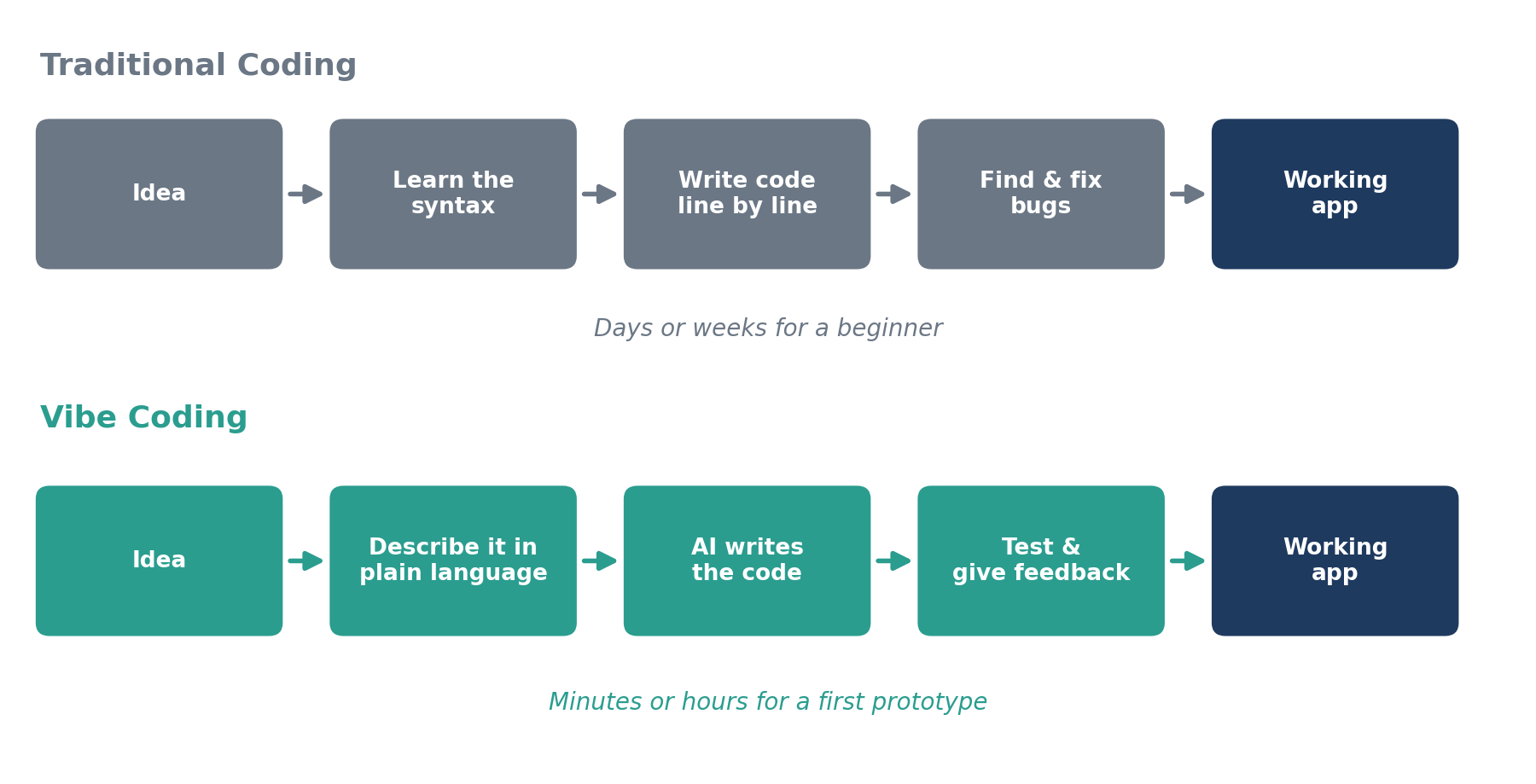
Figure 1. Traditional coding compared with vibe coding.
Who is it for?
- Beginners who want to turn an idea into something real without first learning to code.
- Professionals such as designers, marketers and analysts who want custom tools quickly.
- Developers who want to prototype faster and skip repetitive work.
- Students and hobbyists who learn best by building and experimenting.
3. How it works: the vibe coding loop
Every vibe coding project, big or small, follows the same cycle. You do not need to get it perfect the first time. Each pass through the loop brings the result closer to what you imagined.
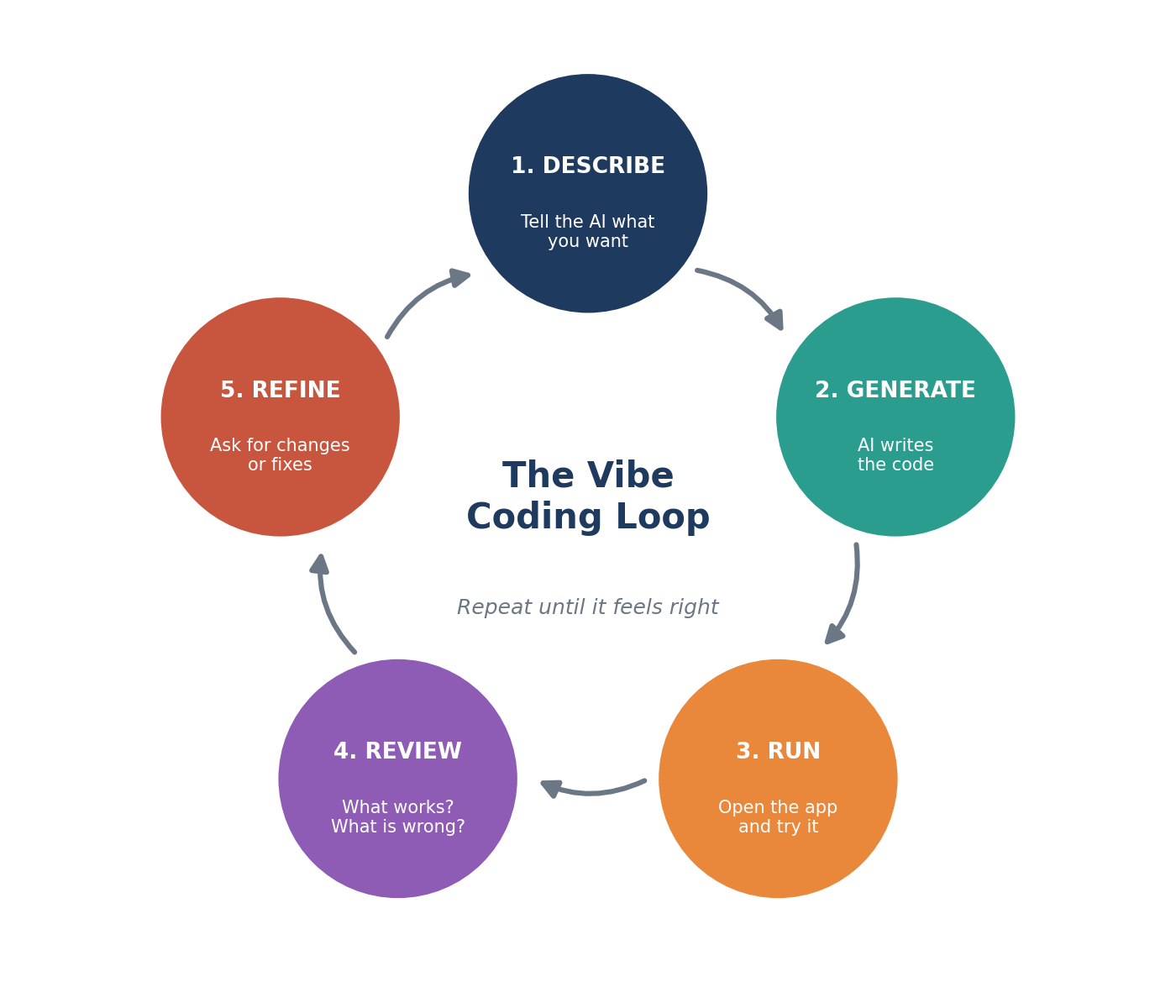
Figure 2. The five-step vibe coding loop.
| Step | What you do | Example |
|---|---|---|
| 1. Describe | State your goal clearly in plain language. | "Build a simple to-do list app." |
| 2. Generate | The AI produces the code or the app. | A working page appears. |
| 3. Run | Open and test the result yourself. | Click the buttons, type a task. |
| 4. Review | Note what works and what does not. | "Delete button is missing." |
| 5. Refine | Ask for specific changes or fixes. | "Add a delete button and dark mode." |
4. Choosing a tool
Many tools support vibe coding. They fall into three broad groups. As a beginner, start with a chat-based assistant or a browser-based app builder, since neither requires any installation or setup.
| Type | Examples | Best for |
|---|---|---|
| Chat assistants | Claude, ChatGPT, Gemini | Learning, small apps, single-file projects, asking questions as you go. |
| App builders (browser) | Replit, Lovable, Bolt, v0 | Turning an idea into a live, shareable web app with minimal setup. |
| Coding environments | Cursor, Claude Code, GitHub Copilot | Larger projects and working with existing code. Better once you have some experience. |
Tip: Features and pricing change often, so check each tool's website before choosing. Pick one tool and stay with it for your first few projects rather than switching around.
5. Your first project, step by step
Let us build a simple to-do app. This is a classic beginner project because it is small, useful, and easy to test.
Step 1: Write your first prompt
Build a simple to-do list app as a single HTML file. I want to add tasks, tick them off when done, and delete them. Use a clean, modern design with a blue theme that works on mobile.
Step 2: Run the result
The AI will give you code or a live preview. If you receive code, save it as todo.html and double-click the file to open it in your browser.
Step 3: Test and give feedback
Try every feature. Then reply with specific changes, such as "Add a due date to each task and show completed tasks in grey." Make one or two changes at a time so you can see what each one does.
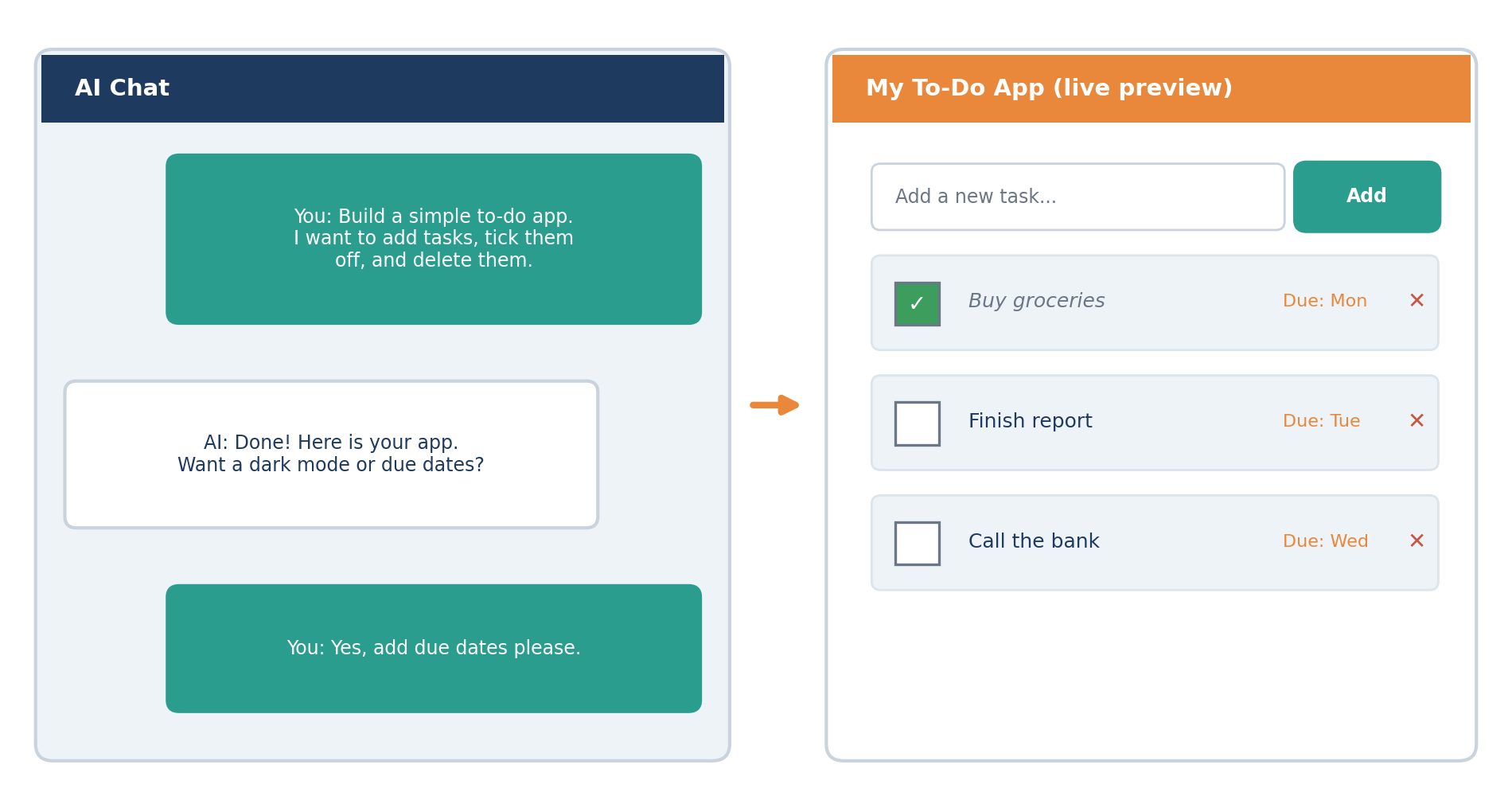
Figure 3. A typical session: you chat on the left, the app updates on the right.
Step 4: Keep going
Repeat the loop until you are happy. Once finished, ask the AI: "Explain how this code works in simple terms." This is one of the best ways to learn programming as a side effect of building.
6. Writing prompts that work
The quality of your result depends heavily on the quality of your prompt. A vague request leaves the AI guessing, while a clear one gives it direction. Include these four ingredients whenever you can.
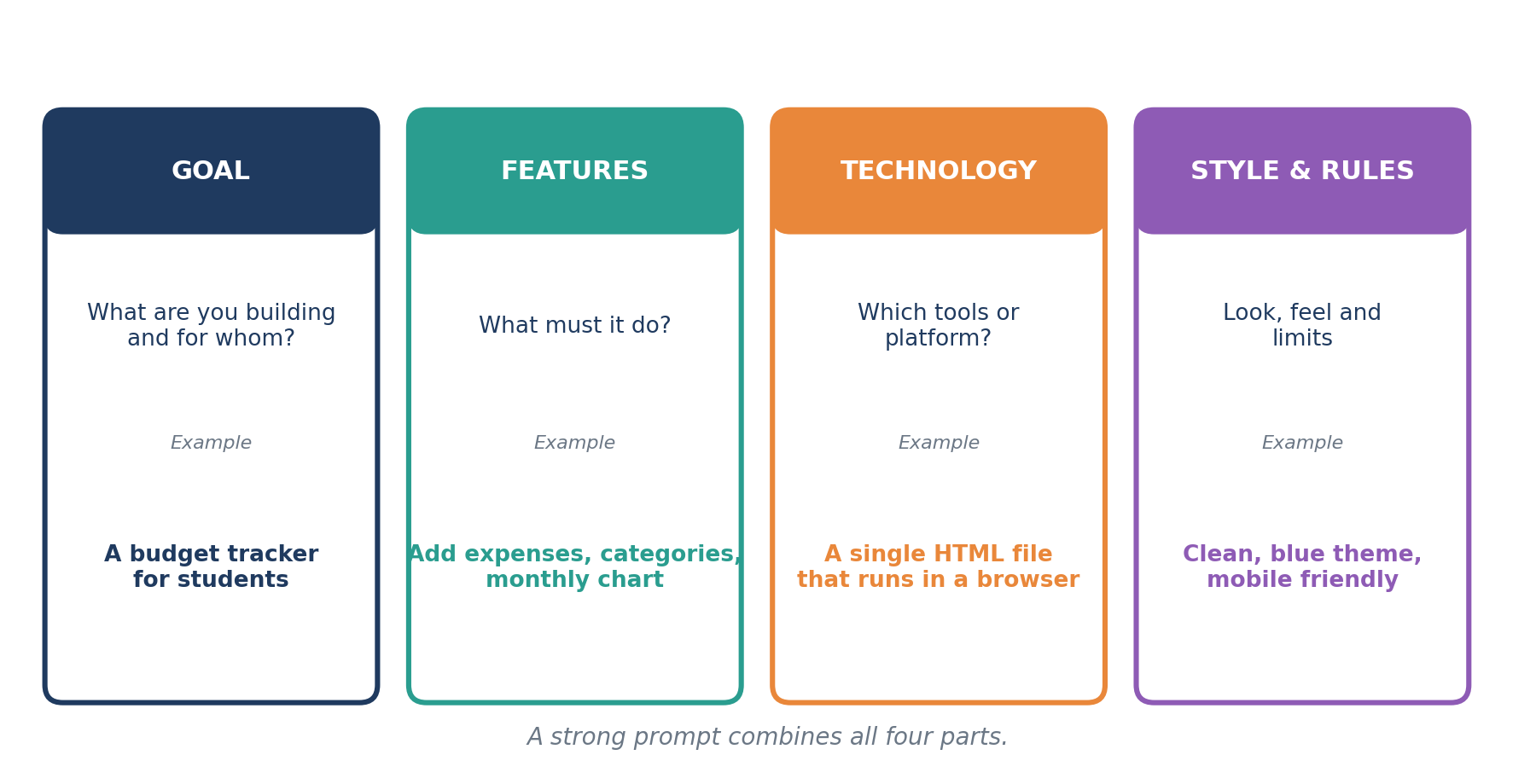
Figure 4. The four parts of a strong prompt.
Weak prompts versus strong prompts
| Weak prompt | Strong prompt |
|---|---|
| "Make a website." | "Create a one-page portfolio website for a photographer with a gallery, an About section and a contact form. Use a minimal black-and-white style." |
| "Build a finance app." | "Build a budget tracker where I can add expenses by category and see a monthly pie chart. Single HTML file, mobile friendly." |
| "Fix it." | "When I click Delete, nothing happens. Here is the error message from the browser: [paste error]. Please fix it." |
Useful habits
- Be specific. Names, numbers, colors and examples all help.
- Go in small steps. Build the basics first, then add features one at a time.
- Describe problems precisely. Say what you did, what you expected and what actually happened.
- Paste error messages. The AI can usually diagnose them quickly.
- Ask for explanations. Phrases like "explain this like I am a beginner" work well.
7. When something goes wrong
Errors are a normal part of the process, even for experienced developers. Use this simple routine.
| Problem | What to try |
|---|---|
| The app does not open or shows a blank page | Copy any error message and paste it to the AI with the words "please fix this". |
| A feature does not work as expected | Describe the exact steps you took and what you saw instead. |
| A change broke something that worked before | Ask the AI to undo the last change, or restore your saved earlier version. |
| The AI keeps repeating the same mistake | Start a fresh chat. Paste your current code and describe the goal again. |
8. Best practices and cautions
Vibe coding is powerful, but it works best when used responsibly. Keep these points in mind.
- Review what you receive. You do not need to understand every line, but skim the code and ask the AI to explain anything unclear. AI can make mistakes.
- Protect secrets. Never paste passwords, API keys or private customer data into a prompt or into your code.
- Save versions. Use a tool such as Git, or simply keep dated copies, so you can go back if a change breaks things.
- Test thoroughly. A program that works once may still fail with unusual input. Try odd cases on purpose.
- Be careful with sensitive projects. For anything involving payments, personal data or safety, ask an experienced developer to review the code before release.
- Keep learning. The more you understand, the better your prompts and the better your judgment of the results.
Strengths and limitations
| Strengths | Limitations |
|---|---|
| Very fast prototyping | Generated code can contain bugs or security gaps |
| Low barrier to entry | Harder to maintain if you do not understand the code |
| Great for learning by doing | Large, complex systems still need engineering expertise |
| Encourages experimentation | Results vary with prompt quality |
9. Your 4-week learning roadmap
A little practice each week builds confidence quickly. Use this plan as a guide and adjust it to your pace.
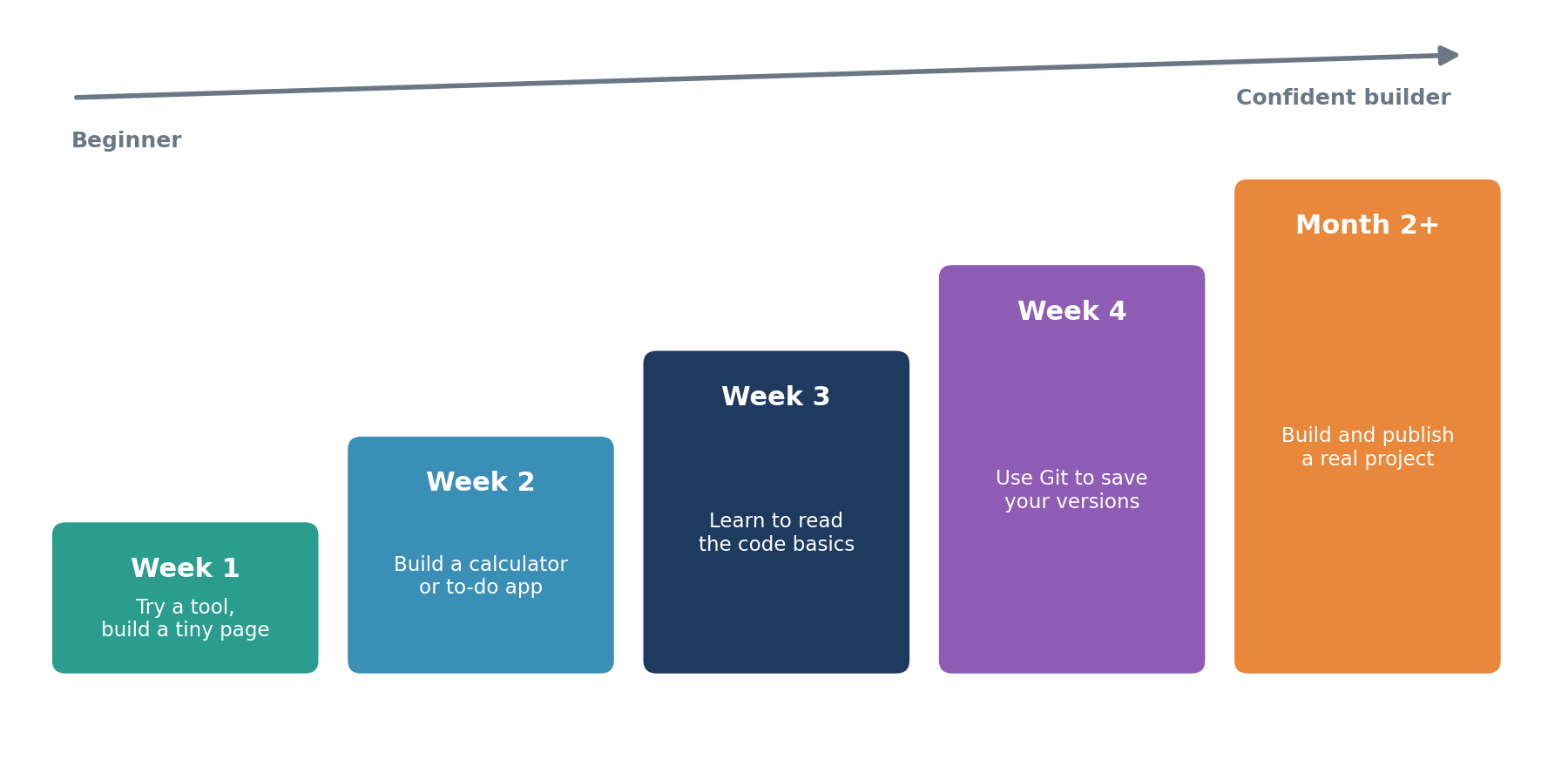
Figure 5. A suggested path from first experiment to real project.
| When | Goal | Suggested project |
|---|---|---|
| Week 1 | Get comfortable with one tool. | A personal greeting page or a tip calculator. |
| Week 2 | Practice the build-and-refine loop. | A to-do list or a simple quiz. |
| Week 3 | Start to read and understand code. | Ask the AI to explain each part of your Week 2 project. |
| Week 4 | Protect your work with versions. | Learn basic Git and save your projects online. |
| Month 2+ | Build something you truly need. | A habit tracker, a small business tool or a portfolio site. |
10. Glossary
| Term | Meaning |
|---|---|
| Prompt | The instruction or message you give to an AI. |
| Code | Written instructions that tell a computer what to do. |
| Prototype | An early, simple version of a product used to test an idea. |
| Debugging | Finding and fixing mistakes in a program. |
| HTML | The language used to build the structure of web pages. |
| Git | A tool that records versions of your files so you can go back. |
| API key | A secret code that gives a program access to a service. Keep it private. |
11. Quick-start checklist
- Choose one AI tool and create an account.
- Decide on a small first project (30 minutes or less).
- Write a prompt with goal, features, technology and style.
- Run the result and test every feature.
- Refine in small steps, one or two changes at a time.
- Ask the AI to explain the code to you.
- Save a copy before every major change.
Remember: every expert started as a beginner. Start small, stay curious, and enjoy the process of turning ideas into working software.